
Spotify for PC
Download Spotify for PC and enjoy your favorite music, playlists, podcasts, and more on a smooth desktop experience. Get Spotify for Windows or compatible computers and start listening on a larger screen.
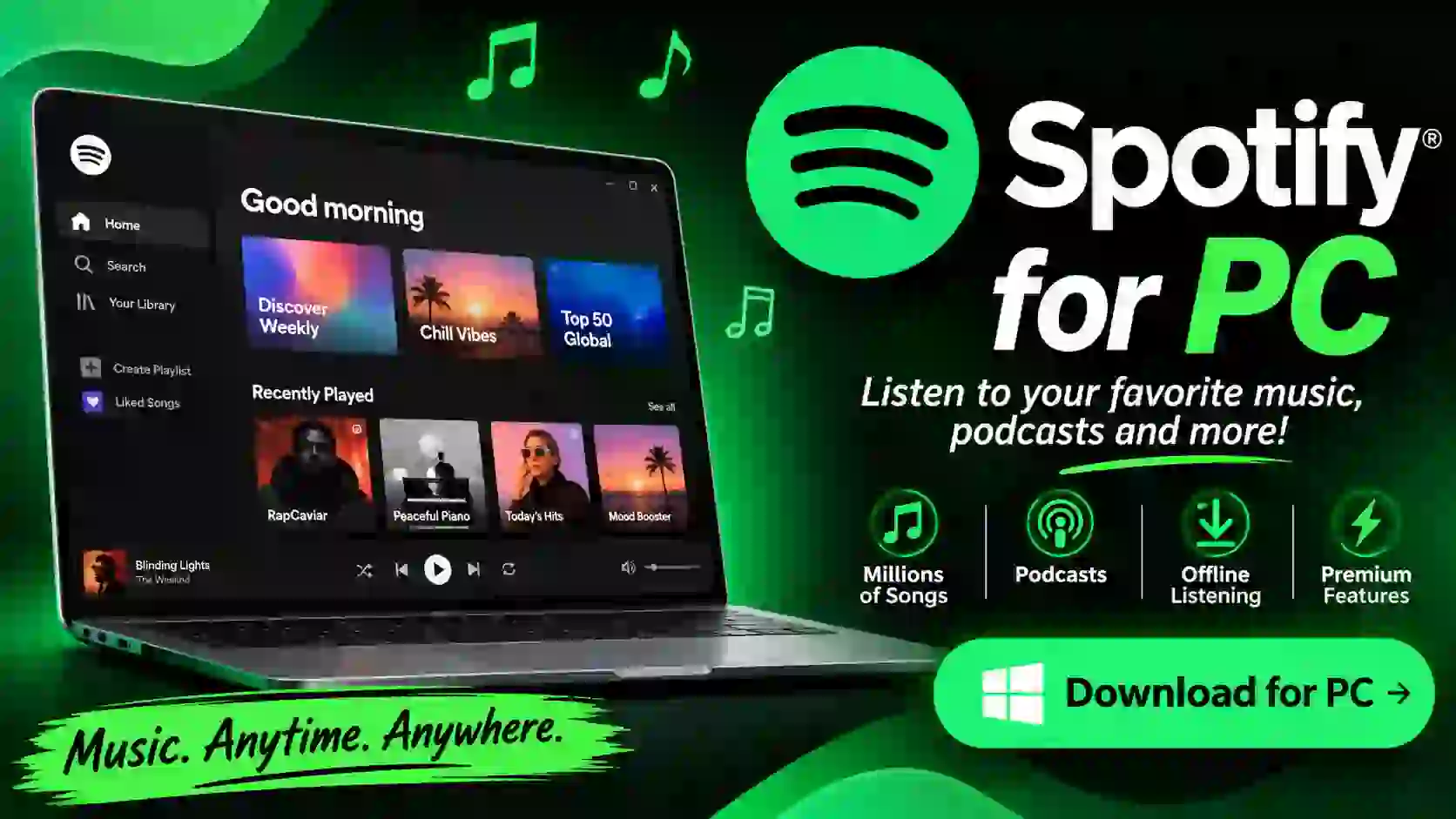
Download Spotify for PC Latest Version
Spotify for PC allows Windows users to access their music library through a desktop application. You can download the Windows installer from the official website or Microsoft Store. Choose the available version, save the setup file, and run it on your computer. After installation, sign in to your account and start listening to music.
Spotify for PC Details
Check the basic application information before installing the desktop version.
| Details | Information |
|---|---|
| App Name | Spotify |
| Category | Music & Audio |
| Platform | Windows PC |
| Latest Version | Check official release |
| File Format | EXE / Microsoft Store |
| Developer | Spotify AB |
| Operating System | Windows 10 and Windows 11 |
| License | Free with Premium option |
| Internet | Required for streaming |
Spotify PC System Requirements
Your computer should meet the basic system requirements to run the desktop application smoothly. Also, keep Windows updated for better performance.
| Requirements | Details |
|---|---|
| Operating System | Windows 10 or Windows 11 |
| Processor | Compatible Windows processor |
| RAM | 4 GB recommended |
| Storage | Space for app installation and cache |
| Internet | Stable internet connection |
| Display | Standard PC display |
| Account | Free or Premium account |
How to Download Spotify on Windows 10 & 11
Windows users can get the desktop application from the official website or Microsoft Store. Both options provide a simple installation process.
Follow these steps:
- Open your web browser.
- Visit the official download page.
- Select the Windows download option.
- Wait for the installer to download.
- Open the downloaded setup file.
- Follow the installation instructions.
- Launch the app after installation.
You can also search for the application in the Microsoft Store and select Install.
How to Install Spotify on PC
After downloading the setup file, you can install the desktop application in a few steps. Make sure you have enough free storage before starting.
- Open the Downloads folder.
- Find the Spotify setup file.
- Double-click the installer.
- Allow the installation to begin.
- Wait for the process to finish.
- Open the application.
- Sign in to your account.
How to Create a Spotify Account on PC
You need an account to save playlists and manage your music preferences. You can create one through the official website or desktop app.
- Open the application.
- Select Sign Up.
- Enter your email address.
- Create a password.
- Add your date of birth and other required details.
- Complete the registration process.
- Sign in to your new account.
You can also use an available Google, Apple, or other supported sign-in option.
Features of Spotify for PC
The desktop application includes several tools for music streaming and playlist management. Here are some useful features you can access on Windows.
Easy-to-Use Desktop Interface
The desktop interface keeps your music library, search bar, and playlists easy to access. You can move between different sections without difficulty. It also provides simple playback controls.
Stream Millions of Songs
You can search for songs, albums, and artists from different music genres. The app lets you play available tracks through an internet connection. Music availability may vary by country.
Create and Manage Playlists
You can create playlists for different moods and activities. Add your favorite songs and arrange them in your preferred order. You can also rename or delete playlists whenever needed.
Discover New Music
The app suggests songs based on your listening habits. You can explore personalized playlists and recommendations. This makes it easier to find new artists and music.
Listen to Podcasts
You can browse podcasts and listen to available episodes from different categories. Search for your favorite shows and follow them. Available content depends on your region.
Spotify Connect Support
Spotify Connect lets you control playback on supported devices through the app. You can switch between compatible speakers, phones, and other devices. Both devices may need the same network or account access.
High-Quality Music Streaming
The desktop app offers different audio quality settings. You can adjust streaming quality based on your internet connection and subscription plan. Higher quality may use more data.
Desktop Notifications and Media Controls
You can use your keyboard and supported media controls to manage playback. Some Windows devices also show media information and playback options. This makes music control easier while working.
Spotify Free vs Premium on PC
The free and Premium plans provide different listening experiences. The free plan gives access to music with some limits, while Premium adds extra playback benefits.
| Features | Free Plan | Premium Plan |
|---|---|---|
| Music Streaming | Yes | Yes |
| Advertisements | Yes | No |
| Offline Downloads | No | Yes, where supported |
| Song Skips | Limited in some modes | More control |
| Audio Quality | Standard options | Higher quality options |
| Playlist Creation | Yes | Yes |
| Podcast Access | Yes | Yes |
| Subscription Fee | Free | Paid |
Spotify Desktop App vs Spotify Web Player
You can access your music through the desktop application or a web browser. Both options let you search for songs and manage playlists. However, they offer slightly different experiences.
| Features | Desktop App | Web Player |
|---|---|---|
| Installation | Required | Not required |
| Access | Windows application | Web browser |
| Music Streaming | Yes | Yes |
| Playlist Management | Yes | Yes |
| Device Controls | Supported | Browser-based |
| Updates | App updates | Browser updates |
| Storage | Uses local app space | No separate app installation |
Can You Download Songs on Spotify for PC?
Premium users can download supported albums and playlists for offline listening through the desktop application. Open an album or playlist and select the Download option if available. The downloaded tracks remain inside the app. You cannot save them as regular MP3 files or transfer them to another music player.
How to Use Spotify Web Player Without Installing
The web player lets you listen to music without installing desktop software. It works through supported web browsers and provides access to your account.
- Open Chrome, Edge, or another supported browser.
- Visit the official Spotify Web Player.
- Click Log In.
- Enter your account details.
- Search for your favorite music.
- Select a song and start playing.
How to Update Spotify on Windows
Keeping the desktop application updated can improve stability and provide new features. The app may update automatically, but you can also check for updates manually.
- Open the desktop application.
- Click your profile icon.
- Look for an available update notification.
- Select Update Now if shown.
- Restart the app when required.
If you installed it through the Microsoft Store, open the Store and check the Downloads or Updates section.
How to Uninstall Spotify from PC
If you no longer need the desktop application, you can remove it through Windows settings.
- Open Windows Settings.
- Select Apps.
- Open Installed Apps or Apps & Features.
- Find Spotify in the list.
- Click the three-dot menu.
- Select Uninstall.
- Confirm your choice.
Common Spotify PC Problems and Their Fixes
Sometimes, users may face playback, login, or installation problems. You can try these simple solutions to fix common issues.
| Problem | Possible Fix |
|---|---|
| App not opening | Restart your PC |
| Songs not playing | Check your internet connection |
| Login problem | Verify your account details |
| App running slowly | Close unused programs |
| Installation error | Download a fresh installer |
| No sound | Check Windows audio settings |
| App keeps crashing | Update or reinstall the app |
Is Spotify Safe to Download on PC?
The official desktop application is a reliable option for Windows users. Download it from the official website or Microsoft Store. Avoid unofficial setup files because they may contain harmful software. Also, keep your Windows system and application updated to reduce security risks.
FAQs
Is Spotify Available for Windows 10?
Yes, you can install the desktop application on supported Windows 10 computers. Download the installer from the official website or Microsoft Store.
Does Spotify Work on Windows 11?
Yes, the desktop application supports compatible Windows 11 devices. You can install it through the official download page or Microsoft Store.
Can I Use Spotify on PC for Free?
Yes, you can create a free account and stream music on your computer. However, the free plan includes advertisements and some playback limits.
Can I Download Spotify APK on PC?
An Android APK cannot run directly on Windows. You need a compatible Android emulator to install an APK. Alternatively, use the official Windows desktop application.
Does Spotify Support Offline Music on PC?
Yes, Premium users can download supported albums and playlists for offline listening. However, downloaded music stays inside the application.
Can I Use the Same Account on Mobile and PC?
Yes, you can sign in with the same account on your phone and computer. Your playlists, saved music, and account preferences sync across supported devices.
Is Spotify Available for Mac?
Yes, Spotify provides a desktop application for macOS. You can download the Mac version from the official website and install it on a compatible computer.