Spotify for iOS
Enjoy your favorite music, playlists, podcasts, and more with Spotify for iPhone and iPad. Get the Spotify app for iOS and enjoy a smooth listening experience on your Apple device.
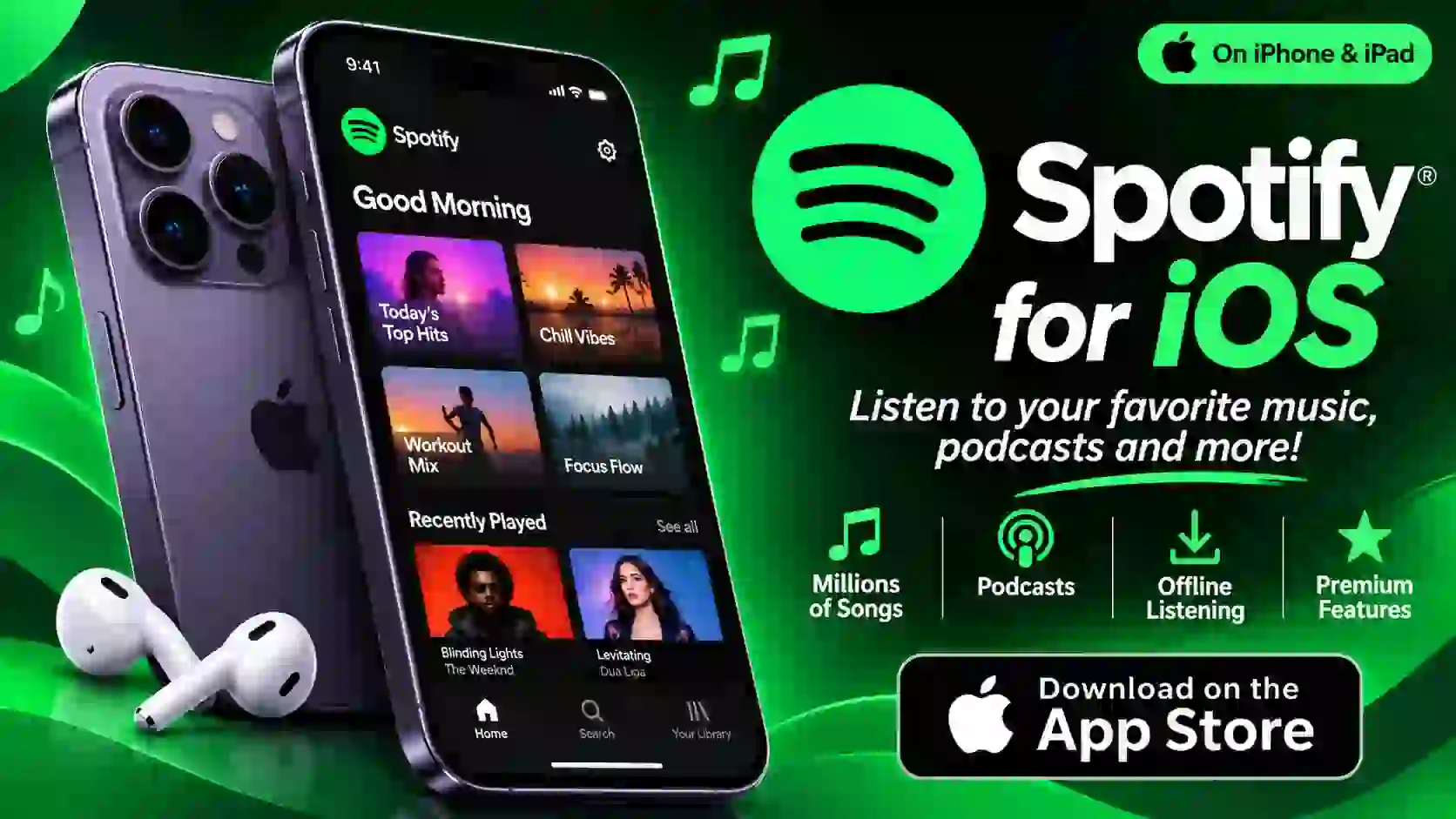
Download the Latest iOS App
Spotify is available for iPhone and iPad through Apple’s App Store. Users can install it directly without downloading an APK file. Open the App Store, search for the app, and tap Get. Once the installation finishes, open it and sign in to your account.
iOS App Details
The following table gives a quick overview of the application and its basic requirements.
| Detail | Information |
|---|---|
| App Name | Spotify |
| Platform | iOS |
| Supported Devices | iPhone and iPad |
| Download Source | Apple App Store |
| App Category | Music and Podcasts |
| Account | Free or Premium |
| Installation | Direct App Store installation |
iOS System Requirements
Before installing the app, check whether your device supports the current release. You can find the required iOS version on its App Store page.
- Operating System: A compatible iOS or iPadOS version.
- Device: A supported iPhone or iPad.
- Storage: Enough free space for installation and app data.
- Internet: Wi-Fi or mobile data for online streaming.
- Apple ID: Required to download apps from the App Store.
Older devices may not support the newest release. Therefore, check compatibility before updating your device.
How to Download the App on iPhone
You can get the official application directly from Apple’s store. Follow these steps:
- Open the App Store on your iPhone.
- Tap the Search option.
- Enter the app name in the search box.
- Select the official application from the results.
- Tap Get to begin downloading.
- Confirm with Face ID, Touch ID, or your Apple ID password if asked.
- Wait for the installation to finish.
After that, the app icon will appear on your home screen.
How to Install the App on iOS Devices
The App Store handles the installation automatically. You do not need to extract files or change your device settings.
- Open the downloaded application.
- Wait for the welcome screen to appear.
- Sign in with an existing account or create a new one.
- Allow the permissions you want to use.
- Choose your preferred music settings.
Once setup is complete, you can search for songs, albums, artists, and podcasts.
How to Create an Account on iPhone
A user account helps you save playlists and keep your music preferences in one place. You can create one with an email address or another supported sign-up method.
- Open the application.
- Select the sign-up option.
- Enter your email address and other required details.
- Create a strong password.
- Follow the instructions to verify your account.
- Choose your music preferences if prompted.
You can use the same account on other supported devices.
Features of the iOS App
The iOS version includes tools for finding music, managing playlists, and listening to podcasts. Its features may vary depending on your account type, region, and app version.
Simple and User-Friendly Interface
The interface keeps the main sections easy to access. You can move between Home, Search, and Your Library without dealing with complex menus. As a result, finding saved content takes less time.
Stream Millions of Songs
Users can search for tracks from different artists and music genres. The app also provides albums, singles, and curated collections. However, the available catalogue may vary by country.
Create and Manage Music Playlists
Playlists let you organize tracks based on your mood or interests. You can create a new list, add songs, remove tracks, and change their order. This makes it easier to keep your favourite music together.
Discover New Music and Artists
Personalized recommendations can help you find artists and tracks you may enjoy. You can also browse charts, genre collections, and editorial playlists. Your listening activity can influence these suggestions.
Listen to Podcasts
The app also offers podcasts across several topics. You can search for a show, follow it, and play available episodes. This gives users more listening choices beyond music.
Connect with Supported Devices
Spotify Connect lets users control playback on compatible devices. For example, you can use your phone to control music playing on a supported speaker or computer. Both devices may need an internet connection.
High-Quality Audio Streaming
Audio quality settings allow users to adjust streaming quality where available. Higher settings can use more mobile data. Therefore, choose a suitable option based on your internet connection and data plan.
Offline Music Downloads
Premium subscribers can download eligible music for offline listening. This feature helps when travelling or using a limited internet connection. Keep in mind that downloaded tracks remain inside the app and are not regular audio files.
Personalized Music Recommendations
The Home section can suggest playlists, albums, and artists based on your listening habits. You can also explore new releases and popular tracks. Over time, these suggestions may become more relevant to your interests.
Free vs Premium on iOS
The free and paid plans offer different listening options. The exact features can vary by country and subscription terms.
| Feature | Free Plan | Premium Plan |
|---|---|---|
| Music Streaming | Yes | Yes |
| Advertisements | Included | Ad-free music listening |
| Offline Music | Limited | Available for eligible downloads |
| Playback Control | Some restrictions | More control |
| Audio Quality | Standard options | Higher quality options where available |
| Subscription Fee | No monthly fee | Paid subscription |
Check the official plan page for current prices and features in your region.
Premium vs Free App on iPhone
The main difference is the listening experience. The free plan lets users stream music without a paid subscription, but it includes advertisements and some playback limits. Premium provides additional controls and offline downloads for eligible content.
Your choice depends on how you listen. If you only play music occasionally, the free plan may be enough. However, frequent listeners may prefer the extra features of a paid plan.
Can You Download a Mod APK on iOS?
No. Android APK files are designed for Android devices and cannot be installed directly on an iPhone or iPad. iOS uses a different app format and installation system.
Be careful with websites that claim to offer an iOS APK. Such files may be misleading or unsafe. For a safer option, use the Apple App Store and avoid sharing your Apple ID details with unknown websites.
Can You Use the App Without Installing It on iPhone?
Yes. You can use the web player through a supported browser instead of installing the mobile app.
- Open Safari or another supported browser.
- Visit the official web player website.
- Sign in to your account.
- Search for music or podcasts.
- Start playback.
Some features may work differently in a browser. The available experience can also depend on your account and device.
How to Update the App on iPhone
Keeping the application updated can improve performance and fix known issues. Follow these steps to check for a new release:
- Open the App Store.
- Tap your profile picture.
- Scroll to the available updates section.
- Find the application in the list.
- Tap Update if a new version is available.
You can also enable automatic app updates in your iPhone settings.
How to Delete the App from iOS Devices
If you no longer need the application, you can remove it from your device.
- Find its icon on the home screen.
- Touch and hold the icon.
- Select Remove App.
- Tap Delete App.
- Confirm your choice.
Deleting the app does not automatically cancel a paid subscription. Manage your subscription separately through the service or the billing provider.
Common iOS Problems and Their Fixes
Sometimes users may face playback, login, or installation issues. Try these basic solutions before reinstalling the app.
App Is Not Downloading
Check your internet connection and available storage. Also, make sure your device can run the current version. Restart the App Store if the download remains stuck.
Music Is Not Playing
Check whether your internet connection is working. Then close and reopen the app. If the problem continues, try playing another track to see whether the issue affects one song or all content.
Login Is Not Working
Confirm that you entered the correct email address and password. If needed, use the password reset option. Also, check whether the service is experiencing a temporary login problem.
App Keeps Crashing
Close the app and restart your iPhone. Next, check for an available update. If the issue continues, reinstall the app after confirming that you know your account login details.
Offline Downloads Are Missing
Make sure you are signed in to the correct account and have an active eligible subscription. Check your internet connection and download settings. You may also need to download the content again.
Is It Safe to Use on iPhone?
Downloading apps from Apple’s official App Store is generally the safer choice. Apple reviews apps before making them available, although no app platform can guarantee complete security.
Avoid unofficial installation profiles and websites that ask for your Apple ID password. Also, review app permissions and keep your device updated. These steps can help protect your account and personal information.
Frequently Asked Questions
Is the App Available for iPhone?
Yes. iPhone users can download the official application through the Apple App Store. Search for its name and check that the developer details match the official listing.
Can I Download It on iPad?
Yes. You can install the iPad-compatible version through the App Store if your device meets the current system requirements.
Is It Free on iOS?
Yes. A free plan is available, but it includes advertisements and certain listening restrictions. Paid plans offer additional features.
Can I Download Songs on iPhone?
Premium subscribers can download eligible music for offline listening. The downloaded content stays within the application and cannot be used as regular audio files.
Does It Work on All iOS Versions?
No. Each release has its own minimum system requirements. Check the App Store listing to confirm whether your iPhone or iPad supports the current version.
Can I Use a Premium Subscription on iPhone?
Yes. Sign in with the account linked to your subscription. Your available plan features should appear after the account details sync.
Can I Install an APK on iOS?
No. APK files are made for Android and do not work directly on iOS. Use the App Store to install compatible iPhone and iPad applications.
How Do I Cancel a Premium Subscription on iPhone?
The cancellation method depends on where you purchased the subscription. If Apple handles your billing, open Settings, tap your name, select Subscriptions, choose the relevant subscription, and follow the cancellation steps. If you subscribed directly through the service, manage it through your account page.